You want to change your own password — typically right after first-boot.
Steps
-
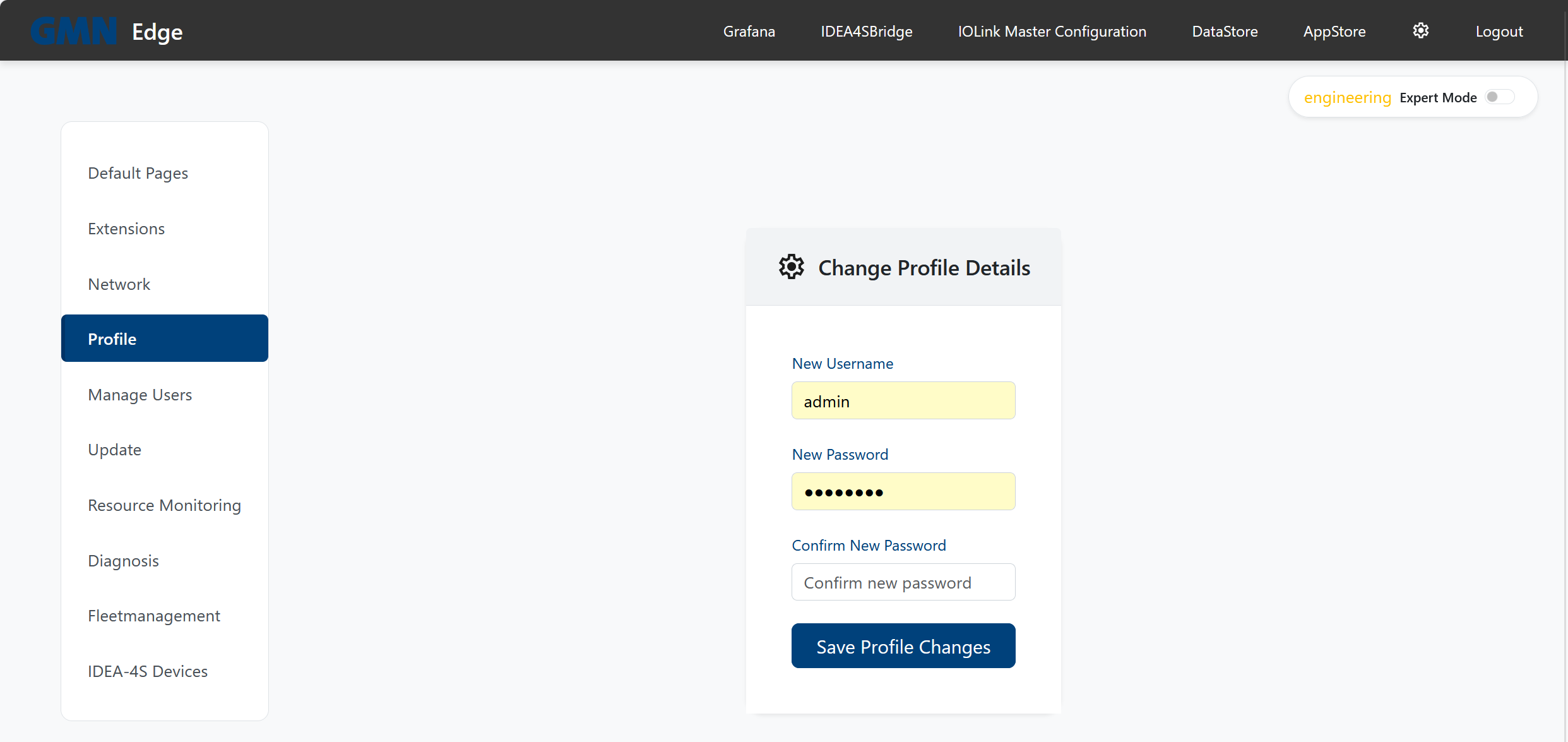
Click the cog icon top-right → you are in the settings.
-
Pick Profile in the left sidebar.
-
In the Change Profile Details form enter a new password and confirm it in the second field. The line under the field states what the password policy requires, by default at least 10 characters and not the username.
-
Optional: also change the username.
-
Click Save Profile Changes.
On the next login use the (possibly new) username and the new password.
Notes
-
If the new password does not meet the policy, the old one stays valid and the reason appears at the top. An admin sets the policy under Manage users.
-
Once you set a custom password, it is no longer derived from the machine ID — you alone are responsible for it from then on.
-
If you lose your password, a user with
network-configuration(or other admin) permission can set a new one in Settings → Manage Users. -
If access is fully lost, Brinkhaus personnel can always re-derive the initial password from the machine ID.
-
From gmn-2.34.0 the machine ID is shown in the header, next to the plant name, so you can see which system you are on. On narrow screens it is hidden. It appears only after you sign in, deliberately: the initial password is derived from it. On a system whose password has not been changed since commissioning, putting it on the login page would offer it to anyone who can reach the device over the network.