
The openXEdge accepts connections from the network only on ports that are on its allow-list. Everything else is dropped — including services that run on the device but have no business being reachable from outside, such as the print service that comes along with the kiosk browser. On the device itself and between its services the firewall changes nothing.
You need this page when you want to close one of the system ports from the network, or when one of your systems has to reach a port that is not open anyway.
System ports
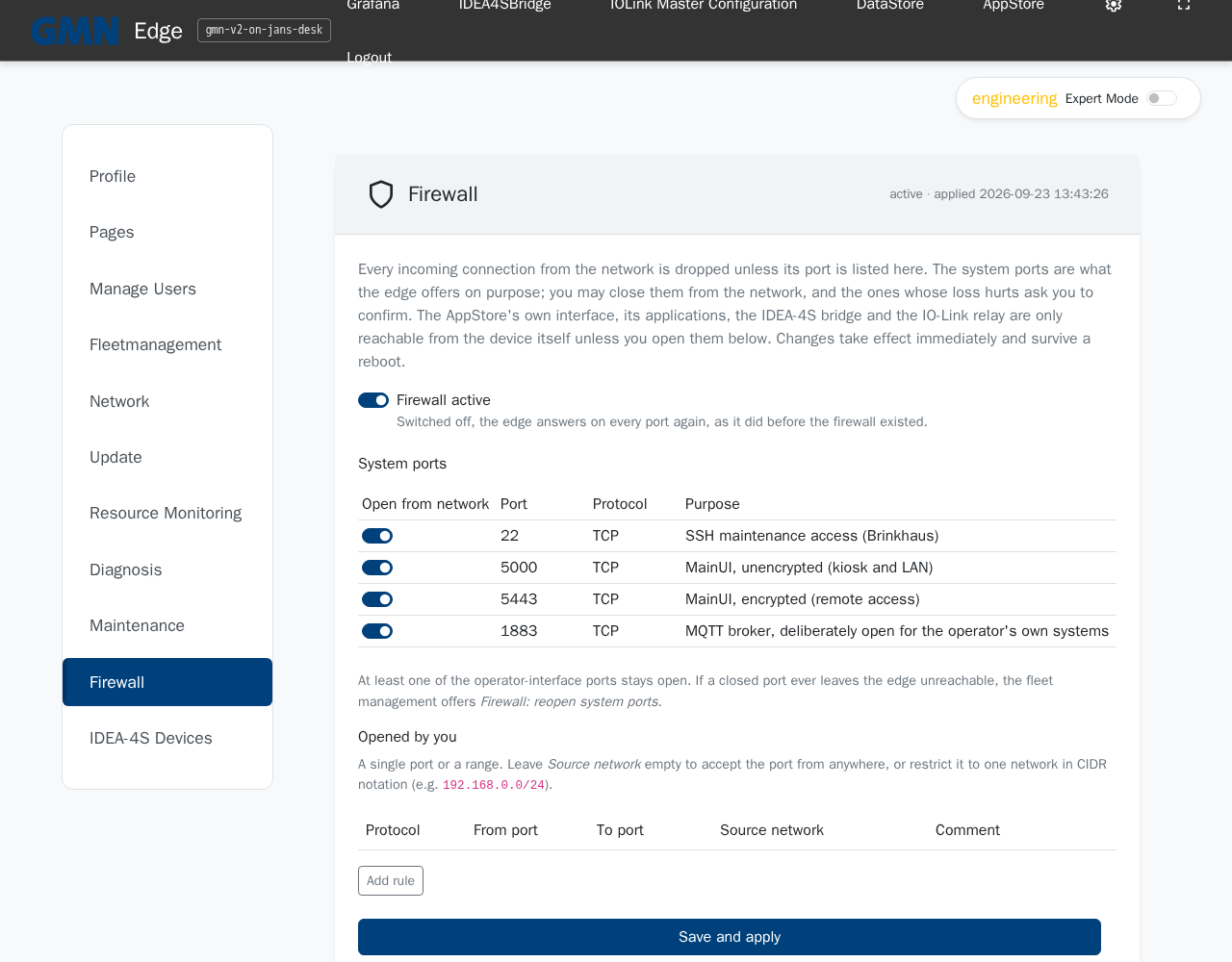
These are the ports the edge offers on purpose. In the delivered state they are all open; Settings → Firewall lists them under System ports with their purpose.
| Port | Purpose | Closing |
|---|---|---|
| 22/tcp | Maintenance access for Brinkhaus | with confirmation only |
| 5000/tcp | Operator interface, unencrypted | without prompt |
| 5443/tcp | Operator interface, encrypted | with confirmation only |
Close a system port
- Sign in as an administrator and open Settings → Firewall.
- Switch Open from network off in the port’s row. For ports whose loss costs something, the edge names the consequence and asks you to confirm — without 22 Brinkhaus can no longer reach the device remotely, without 5443 there is no encrypted operation from the network.
- Click Save and apply.
One of the two operator-interface ports 5000 and 5443 always stays open; the edge refuses to close both at once, because it could then only be operated at its own screen. Opening never needs a prompt.
If you locked yourself out: Because one of the two operator-interface ports always stays open, you still reach Settings → Firewall through that port or at the edge’s own screen and can reopen closed system ports there. If that does not get you further, talk to your contact.
Open a port or a port range
- Sign in as an administrator and open Settings → Firewall.
- Under Opened by you, click Add rule.
- Choose the protocol (TCP or UDP) and enter the first and the last port of the range. For a single port, leave To port empty.
- Optional: restrict the rule with Source network to one network in CIDR
notation, for example
192.168.0.0/24. Empty means: from anywhere. - A comment helps you recognise the rule later.
- Click Save and apply. The rule takes effect immediately and survives a reboot.
To remove a rule, click the ✕ in its row and Save and apply.
If a rule is rejected
The edge checks every rule before it changes anything: ports have to be between 1 and 65535, the first port must not exceed the last, the source network has to be a valid CIDR expression. On an error the current allow-list stays as it is, and the message names the rule concerned.
Switching the firewall off
The Firewall active switch plus Save and apply turns the firewall off entirely. The edge then answers on every port again, as it did before the firewall was introduced. That is meant for troubleshooting, not for everyday operation.
Good to know
- The firewall’s state (active, last applied, last error) is shown at the top right of the page. If applying fails, the edge also reports it in the diagnosis (code 6005) and retries on its next start.
- If the page says the maintenance service is too old, the edge does not yet run the firmware with the firewall — and nothing is blocked yet either.