This walkthrough takes you from the unpacked device to a successful first login. You will need a display, keyboard, and network cable connected to the openXEdge, and about 10 minutes.
Prerequisites
- openXEdge is mounted and powered
- At least one LAN cable is plugged in
- You know the device’s future machine ID (e.g.
PLANT1_M01) — it should identify the device unambiguously - A browser on a device in the same network as the edge
Step 1: Determine the edge address
The on-device display shows, after boot, the IP addresses assigned to all three LAN ports. Note the address of the port connected to your service laptop.
Note: at the factory, Port 1 (
enp1s0) is set statically to192.168.1.250/24, Port 2 (enp2s0) gets its address via DHCP, Port 3 (enp3s0) is set statically to192.168.214.250/24.
Step 2: Device activation
Open http://<edge-ip>:5000/ in your browser. Since the device is not yet activated, the home page redirects you to the activation screen:
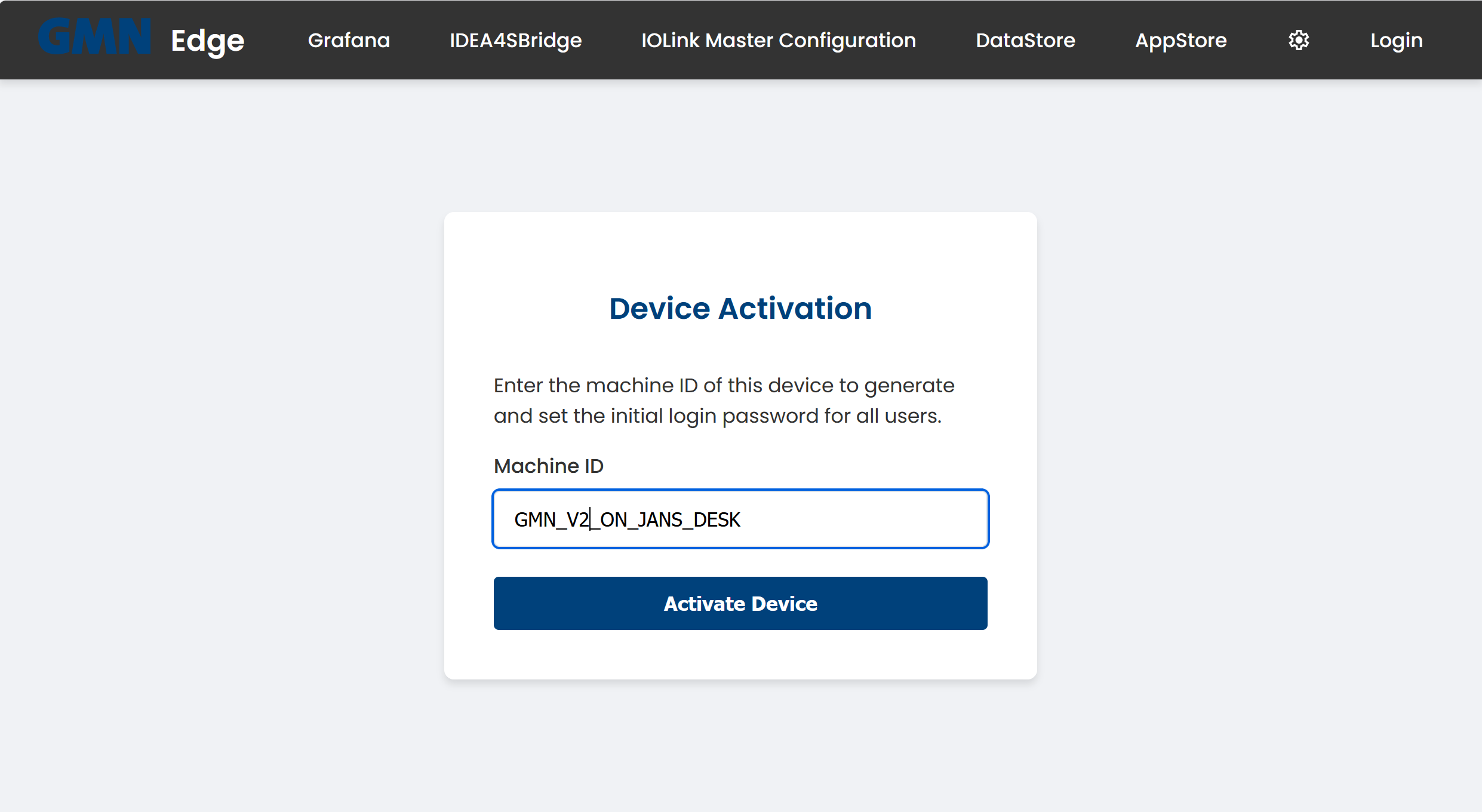
Enter the Machine ID and click Activate Device. This ID names the device and is also used to derive the initial password.
Step 3: Save the initial password
The initial password is shown only once after activation:
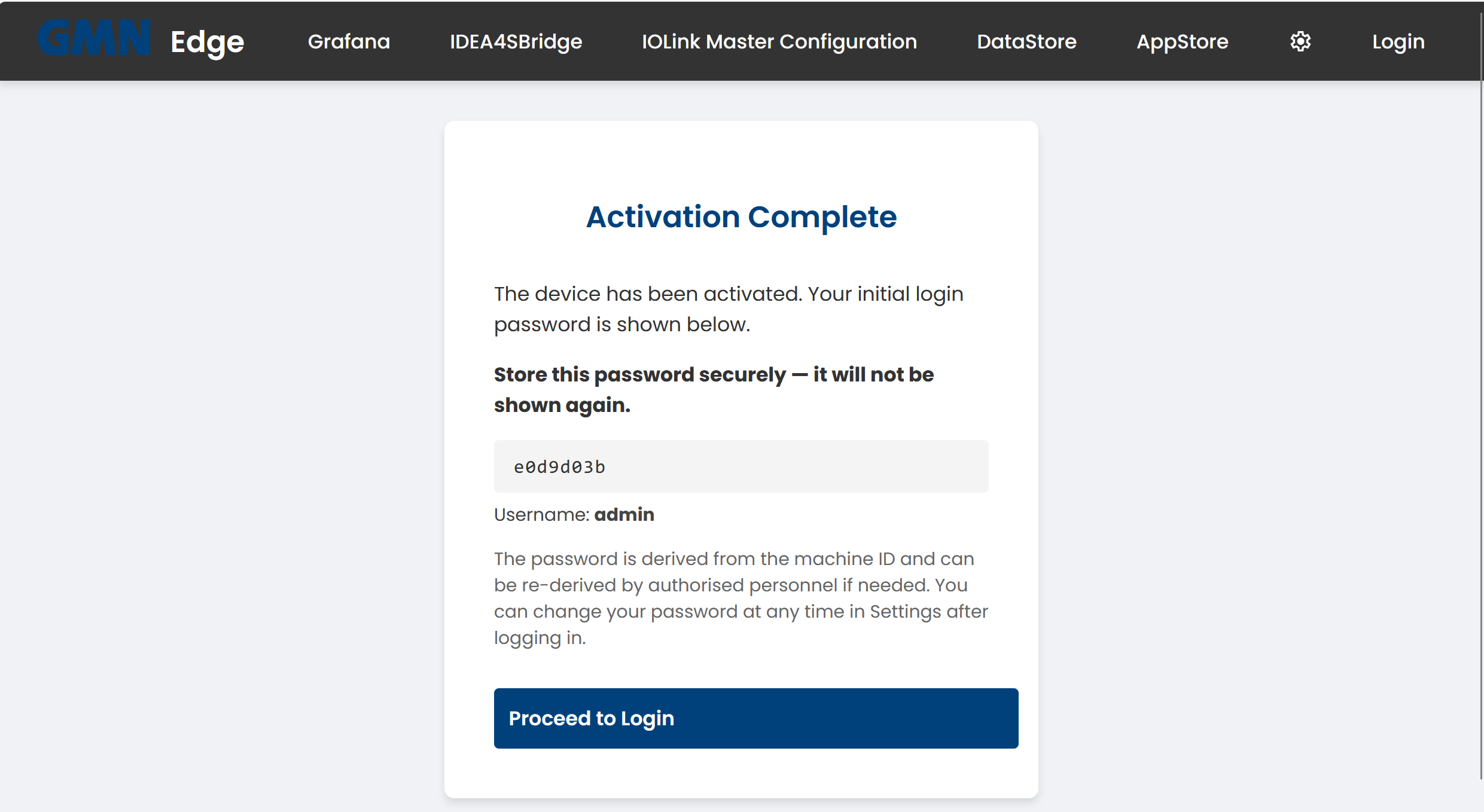
⚠ Important: copy the password now. It is not shown again. The default username is
admin. Authorised personnel can re-derive the password from the machine ID at any time — but change it right after the first login (see Change password).
Step 4: First login
Click Proceed to Login. You land on the sign-in page:
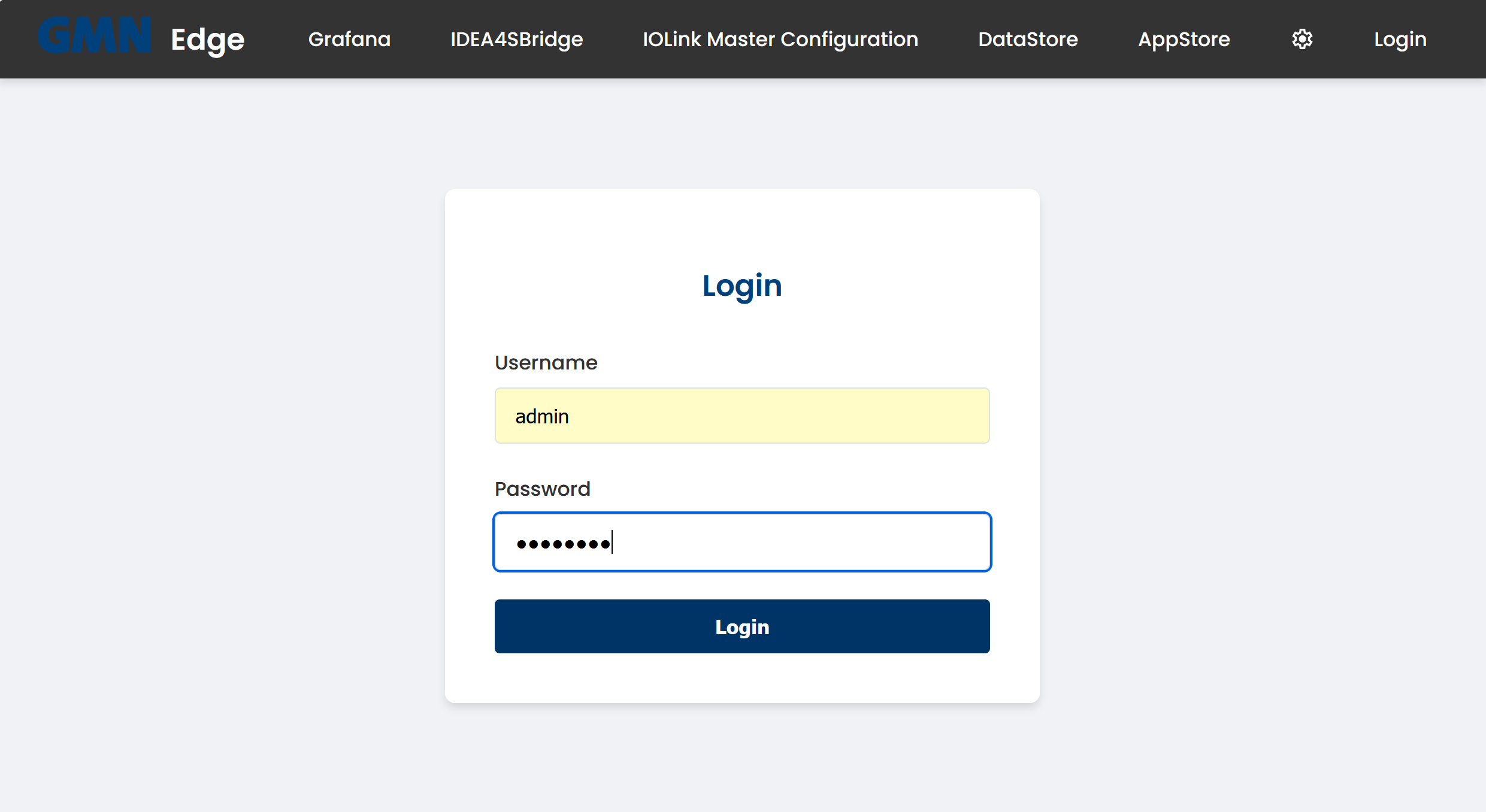
Sign in with admin and the password just shown. You land straight in the DataStore — it is the only embedded application on this device and its start page as well. The Main Functions overview accordingly shows a single tile:
- DataStore — recording, storage and display of measurements (Brinkhaus DataStore)
The cog icon top-right opens the settings panel.
Which page the edge opens first
Out of the box, both the screen at the device and the browser open the DataStore first.
You can change this yourself at any time: Settings → Pages → Start Page. You can choose the overview or any application this device has. The setting covers both ways in at once — the screen at the device and the browser. Left on Automatic, the device behaves as it did before this setting existed: the screen opens the first main application, the browser the overview.
You can always get back to the overview by clicking the logo at the top left, or the device name beside it. And anyone who is not permitted to open an application still lands on the overview rather than on a refusal.
Next steps
- Change password
- Configure the network
- Update firmware
- For background: How updates work